Showing posts with label D365O. Show all posts

Friday, 3 August 2018

FirstOnly in datasource and its alternative (using ROW_NUMBER())

When there’s a requirement to retrieve only the first record from datasource, we might think the “FirstOnly” property under the datasource table will comes in handy, but unfortunately it doesn’t.

I’ve created a View and set the datasource’s FirstOnly property to Yes, then created a class to select from this View, it still returns all the records.
Not sure how this property works, but that’s not the focus of this article.

Screenshot showing the “FirstOnly” property


As an alternative, we can create an additional field (RowNumber) and filter it using RowNumber = 1.

Eg. Given the sample tables below, the requirement is to shows only one contact number for the customer.

Customer
Contact
AccountNum
AccountNum
Locator
ABC
ABC
12345
DEF
ABC
34567
DEF
56789
DEF
78901
DEF
90123

We’ll start with creating the View method under the View.

public class QTQ_CustNonPrimaryPhoneView extends common
{
    public static server str rowNumByAccountNum()
    {
        return 'ROW_NUMBER() OVER (PARTITION BY T1.Partition, T1.AccountNum ORDER BY AccountNum)';
    }
}

Then create a String computed column, set the View Method with this method name.


Select from this View will product result as shown below.

AccountNum
Locator
RowNumByAccountNum
ABC
12345
1
ABC
34567
2
DEF
56789
1
DEF
78901
2
DEF
90123
3

You can easily filter it with “RowNumByAccountNum = 1” to retrieve only the first contact.

Eg.
When using it in code
select from QTQ_CustNonPrimaryPhoneView where QTQ_CustNonPrimaryPhoneView.RowNumByAccountNum = 1.

When using it in Query/View, set the Range by putting in the field ‘RowNumByAccountNum’ and set the value to 1


Friday, 13 April 2018

Object Server Azure: Exception 3762504530 occurred in session 2, process: w3wp.exe, thread: 6396 (After restore Azure db to local VM)

Ref: https://docs.microsoft.com/en-us/dynamics365/unified-operations/dev-itpro/database/copy-database-from-azure-sql-to-sql-server

While trying to update local Dynamics 365 VM to use a database backup from Azure environment, I'm getting the error "Object Server Azure: Exception 3762504530 occurred in session 2, process: w3wp.exe, thread: 6396". This happens after I rename the database and start up the services again.

What happens is that the *.bacpac file has not been prepared for SQL Server yet, it is a direct backup of the Azure SQL database.

In ref. link above, one of the step is to prepare the database which include an important settings changes:

update sysglobalconfiguration set value = 'SQLSERVER' where name = 'BACKENDDB'

This statement will prepare the database for SQL Server environment.
To resolve this issue, run the script under the "Prepare the database" section (in the ref. link above), then restart the services again.

Before the error is resolved, if you're running the Admin user provisioning tool, you'll get "Time out has expired and the operation has not been completed" error.


Below is the screenshot from Event Viewer for the error in title

------------------------------------------------
The description for Event ID 180 from source Dynamics Server Azure cannot be found. Either the component that raises this event is not installed on your local computer or the installation is corrupted. You can install or repair the component on the local computer.

If the event originated on another computer, the display information had to be saved with the event.

The following information was included with the event:

Object Server Azure:
Exception 3762504530 occurred in session 2,process: w3wp.exe ,thread: 6396


------------------------------------------------

Tuesday, 23 January 2018

Default model when create Dynamics 365 project

A quick tips on how to set default model in Dynamics 365.

The default model for the VM is Fleet Management, this can be a bit annoying each time you create a new project, it default to this model and have to open up the project properties to change it.


To change the default model:

1. Open the config file located at: C:\Users\\Documents\Visual Studio 2015\Settings\DynamicsDevConfig.xml


2. Change the ‘DefaultModelForNewProjects’ element value to ‘YourModelName’ and save the file


There're other options you can set here, one of the useful one will be the , set this to "true" if you want the "Synchronize Database on Build" default to true.

Monday, 16 October 2017

Create new entity error - The natural key for the table CustPackingSlipTrans was not found

When create new entity for D365, the wizard will prompt developer to select the table name, the rest is just the matter of selecting fields and finish off the wizard. But sometimes we'll get error for table without a Replacement key.

Eg. CustPackingSlipTrans.

Unfortunately you can't change the "Replacement key" for standard table unless you "Customize" it.
Table extension doesn't allow the change of this property either.

If you use the wizard to create entity for CustPackingSlipTrans, you'll get the "The natural key for the table CustPackingSlipTrans was not found" error.


To create the entity for this table, there're two choices:

  1. Manually create them (including the child datasources)
  2. Temporarily "Customize" it, then remove the "Customize" element after the entity is created


Below are the steps for Option 2 (less effort and quicker than Option 1).

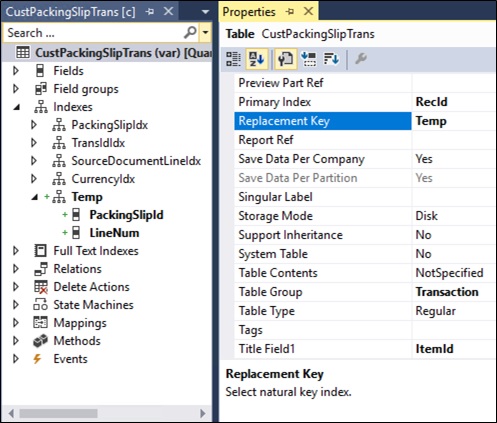
1. Create a temporary index at CustPackingSlipTrans

Allow Duplicates = No
Alternate Key = Yes


*NOTE: Do not include RecId in the temp index

2. Set the temporary index as Replacement key


3. Create the new entity (Right click on the project > Add > New item > Data Model > Data entity)

4. At the wizard, select "CustPackingSlipTrans" as Primary datasource


5. Click "Next", select the required fields and finish off the wizard


6. After the new entity is created, delete the "Customized" CustPackingSlipTrans

7. Update the EntityKey with other key field that's appropriate
(If Data Management property has been set to Yes, then update the staging table as well)


Wednesday, 26 July 2017

Data Management Entity export for all companies

In D365O, by default if you create an entity for a company specific table, the "Primary Company Context" property is set to DataAreaId. This affect what data is exported when the Entity is used for exporting data.

Eg.
All rows from table AAA_TestTable.

AAA_TestTable entity where the "Primary Company Context" property is set to "DataAreaId".
NOTE: The "CompanyId" field is mapped to "DataAreaId" of the source table.

When an Export job is setup using this Entity, it will export the rows base on the company context.

Eg.
Current company = USMF, then only records from USMF company is exported.

If the "Primary Company Context" is cleared out (empty), it will export all records regardless of the company.

Eg.
It exported all records regardless of the company context.


If the Entity is used through OData service call, then the above changes is not required to make the data export cross-company. It just need to add the "cross-company=true" parameter to the service URL. Eg. https://demoaos.cloudax.dynamics.com/data/AAA_TestTable?cross-company=true.

For more details, refers to https://docs.microsoft.com/en-us/dynamics365/unified-operations/dev-itpro/data-entities/cross-company-behavior

Sunday, 9 July 2017

Error - The field 'FieldName' on the extension 'ExtensionName.Extension' already exists. This extension cannot be applied to the base element.

In a recent D365O development, I came across this error when moving fields from a model to another model.

The field 'FieldName' on the extension 'ExtensionName.Extension' already exists. This extension cannot be applied to the base element.

The scenario is that while doing testing on development, some fields have been moved to the standard element (overlayered it by "Customize") [Eg. This is in ModelA]. When the test is done, these field are then moved back to the extension [Eg. This is in ModelB]. Unfortunately after moved it back to the extension, this error occur during the build of the solution.

This is what has been derived:
  • When the fields are moved to the base element, a build is done and the assembly is updated
  • After the testing is done, the change on the base element is deleted (deleting the whole overlayered element)
  • Then used the "Get latest" to restore the extension (it is where the fields are originally created)
  • Then build solution again and error occur
  • It is suspected that after the change in base element is deleted, the reference to the assembly still there. Hence, when building the solution of the extension, it found that the same fields already exist in the base element.

Solution
  1. In Visual Studio, go to Dynamics 365 > Build models
  2. Select only the model where the base element sit (Eg. Application suite)
  3. Build it
  4. Then build the solution again